

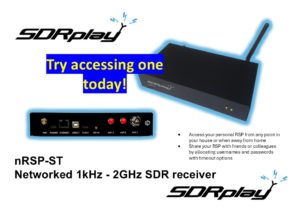
Try accessing an nRSP-ST today!
What’s different about the nRSP-ST compared with a regular SDRplay RSP?
The nRSP-ST lets you:
• Access your personal RSP from any point in your house or when away from home
• Share your RSP with friends or colleagues by allocating usernames and passwords with timeout options
The nRSP-ST is like a traditional SDR receiver but with a fundamental new advantage which is the ability to place the unit wherever it works best and access it from wherever is most convenient. The nRSP-ST is a self contained remote receiver box which doesn’t require a local computer. It is specially designed for continuous unattended operation. It just needs an antenna and an internet connection. The SDRconnect client software provides a robust and flexible interface to whatever decoding apps are chosen. The addition of a web browser (and eventually an Android/iOS app) provides convenience for people who are on the move without access to a laptop. More about the nRSP-ST here
About these demonstrations:
You can play with a real nRSP-ST over the internet
You can try out SDRconnect software before buying any of the SDRplay products. See how it runs on Windows, MacOS, Linux or Raspberry Pi.
If you have control, either as the only user at the time, or by waiting in line for others to drop off, you can choose any frequency you want, and the antenna selection. Please leave with the an active antenna connected for the next person. If you play with gains, filters and other modes, please try to leave it in a usable state withut having to worry about settings when it’s their turn. So no FM/AM or DAB broadcast band filters left on.
You can have access to the following nRSPs:
Northern Germany: (Checked, WORKING JULY 12th 1500UTC 2026)
-Hostname (for SDR connect client): intranet.baltic-lab.com
-Port number (for SDRconnect client): 50000
-Web Server url (not “secure” but trusted): http://sdr.baltic-lab.com:9001
-Username (case senstive): BalticLab
-Password (case sensitive): BalticLab
-Timeout (control passes to next in line): 30 minutes
-Antenna (important to check): B: Mini-Whip with Bias-T enabled (10 kHz – 30 Mhz)
UK, Bedfordshire : THIS SERVER IS NOW BACK TO NORMAL, JULY 12th 0800UTC.
-Hostname (for SDR connect client): nrsp.ddns.net
-Port number (for SDRconnect client): 50002
-Web Server url (not “secure” but trusted): http://nrsp.ddns.net:9001/
-Username (case senstive): Test
-Password (case sensitive): Test
-Timeout (control passes to next in line): 15 minutes
-Antenna (important to check): A: G5RV wire dipole MF through VHF
UK, Norfolk: (THIS SERVER IS NOW BACK TO NORMAL, JULY 20th 2200UTC. )
-Hostname (for SDR connect client): g0dwv-remote.ddns.net
-Port number (for SDRconnect client): 50000
-Web Server url (not “secure” but trusted): http://g0dwv-remote.ddns.net:9001/
-Username (case senstive): Test
-Password (case sensitive): Test
-Timeout (control passes to next in line): 15 minutes
-Antenna (important to check): C – subject to change: End-fed 40-10 wire
USA, Colorado: (Checked, WORKING JULY 12th 2026)
-Hostname (for SDR connect client): amigasteve.dyndns.org
-Port number (for SDRconnect client): 50000
-Web Server url (not “secure” but trusted): http://amigasteve.dyndns.org:9001/
-Username (case senstive): Demo
-Password (case sensitive): test
-Timeout (control passes to next in line): 15 minutes
-Antenna (important to check): Ant A is a discone for VHF up, Ant B is a mag loop for HF.
The Northern German nRSP-ST is maintained by Baltic-Lab – checkout their excellent YouTube Channel: https://www.youtube.com/@BalticLab There is also a webpage dedicated to the nRSP-ST demo: https://baltic-lab.com/websdr/
These nRSPs are available on a first come first served basis. The UK nRSP-ST has a G5RV wire dipole on Antenna A which has best performance over the HF frequencies but also good signals from MF (AM band) to VHF (FM and aircraft bands). Please be patient if you find you have to wait for access. At times it may be oversubscribed. We have set timeout limits. Please note that only the first user gets to select the frequency range.
You can access the actual nRSP-ST server directly from your web browser by simply clicking on the Web Server url link listed above. Read the notes lower down about entering the username and password.
You can also try accessing the demo nRSP-ST from a copy of the SDRconnect client software – download it (for Windows, MacOS or Linux) from here
You can then add one of the remote nRSPs by clicking on the 3 dots and choosing “Remote server”. Fill in the details as shown below:

The easy access from the built-in web server (e.g. for an Android or iOS device) can be found by going to the “Web Server url” shown above, on your web browser – the web interface takes up to 30 seconds to set-up the graphical user interface so be patient. Also some older tablets and phones may not work.
For both forms of access, you will need to enter username and password (they are case sensitive) – you can see your place in the queue by clicking on the network symbol. For small devices, once you have your settings chosen, minimise the control panel to give room for the spectrum display. Also click on the hand symbol to enable the special fingers controls for zoom and tune.
Here are some things to check when using the web version:
(Please note this appears in your browser to be a “non secure” website because these units create web servers which are usually shared with friends and colleagues so self-signing certification is not an issue)
-First press the green “Play” arrow (top left) and enter the (case sensitive) username and password
-Choose the appropriate “mode” in the control panel- eg LSB or USB for HF ham bands (you can change away from the default filter bandwidth as well). It will start in wideband FM! Check it is set to the correct antenna or you will hear nothing!
-If you have control, you can choose your band or specific centre frequency from the band buttons or keypad. If someone else still has control, then you will have to use the band or frequency range already selected. Your tuning range will be limited.
–You can see your place in the queue by pressing the network symbol.
-For small handheld devices, hold in “landscape” and slide the header row if needed with a finger. Select the hand symbol to enable finger controls for zoom and tune.
-For easy tuning of SSB signals, expand the spectrum display scale to a smaller section of the band and then toggle off the control panel (top right button). Then swap back to holding the device in “portrait” mode for fine tuning.
-If you’re using an iPhone be sure not to have “silent mode” switched on! (at the side) – otherwise you get no audio!
-If you’re using an iPad, check silent mode is off. Go to Settings, Sounds and turn off silent mode – otherwise on some iOS versions, you will get no audio!
–Use the band button to get you where you wan to be in the spectrum, then turn it off before minimising the control panel. That way you can glide through the frequencies by dragging the frequency bar left of right, with no band edge limitations. Use the hand controls to zoom and fine tune.
If using the SDRconnect software for the first time , then we recommend viewing the video guides on https://www.sdrplay.com/sdrconnectvideoguides/ and the SDRplay Youtube channel
For newcomers to SDRplay, you can get some idea of the experience you would have if you had your own RSP plugged into your computer locally. The cheapest RSP is the RSP1B which has just one antenna port: https://www.sdrplay.com/purchase/
This video guide demonstrates using a small handhelp device like an Android phone or iPhone: https://youtu.be/424jdYWFoP0
How many simultaneous users can one nRSP-ST support?
The maximum number of simultaneous users that the device can support depends upon the connection mode, signal bandwidth and signal type (demodulation mode). For this demo we have not allowed full IQ as an option – due to internet bandwidth limitations.
The limitation in the number of users is determined by the CPU and GPU load on the host inside the nRSP-ST. A lot of work has been done to balance the signal processing that is performed on the CPU vs the GPU to maximise the use of the available processing power. By this approach, we have been able to increase the supportable number of users by perhaps 50% when compared to software that exclusively uses the CPU. The most severe load is when using ‘compact mode’ for SWFM. In this case if there are more than 3 connections, then there may be some audio break up as all of the processing is being performed on the host itself. For lower bandwidth signals such as AM or SSB, the limit is a lot greater. In this case, the device can support up to 8 users. In
Full IQ mode, the limitation is really network bandwidth. The most useful mode in many ways is IQ Lite. For AM and SSB signals, it only uses about 2-3x the network bandwidth
of compact mode, but reduces the processing load on the nRSP-ST host considerably. It has all of the advantages of full IQ with the exception that it will not allow IQ recording on the client side.
At this stage, we have not attempted to artificially limit the number of connections that can be made. However, in a future release of the firmware, we will most likely add the ability for the owner/administrator to limit the number of simultaneous users, but we want to do that in an intelligent way that doesn’t place unnecessary restrictions, so we want to take account of the modes in which the connections are made.
